

Online Privacy & Security
As you research, create accounts, and participate online, two best practices to observe are detailed below: how to search the web (somewhat) privately and how to create secure passwords. For a comprehensive, plain-language more guide to actions you can take, go to the Consumer Reports Security Planner. This is a free resource from a trustworthy organization that can be customized to your specific concerns and devices. See also our section on Avoiding Scams
SEARCH THE WEB PRIVATELY
The major web browsers and search engines track your search activity by default. You may want to use the “private browsing” or “incognito” feature of your browser to reduce some of that tracking, or you may chose to use a browser that does not collect any personally identifying information. These actions have limits: Your activity is still visible to your ISP, network administrator or law enforcement (with a warrant). Also, if you login to an account while in private browsing mode, that site will be able to track your activity.
Many browsers provide the option to open a private/incognito window. For example:
- Chrome “Incognito” window – Go to: File | New Incognito Window
- Safari – Go to: File | New Private Window
- Microsoft Edge – select the Settings and More icon, and then New InPrivate window.
Browsers that do not collect personal information:
- Duck Duck Go
- TOR (requires a download)
- Firefox (doesn’t collect the data unless you ask it to)
 At a minimum, install the free browser extension from the Electronic Frontier Fondation – Privacy Badger. It works to block trackers; but note, it is not an ad blocker. Available for Chrome, Firefox, Edge and Opera. Their explanation of how it works (click the links for the deeper dive): “Privacy Badger sends the Global Privacy Control signal, to opt you out of data sharing and selling, and the Do Not Track signal to tell companies not to track you. If they ignore these signals, Privacy Badger will learn to block them—whether they are advertisers or trackers of other kinds.”
CREATE AND MANAGE SECURE PASSWORDS
Creating secure passwords and managing them is a reality of our digitial lives. Below is guidance from the Electronic Frontier Foundation, Consumer Reports Security Planner, and a reent article from Wired magazine on how you can accomplish both actions.
- Use a passphrase. This brief video (Electronic Frontier Foundation) explains how, as well as demonstrates why breaking a simpler password is so easy.
- Use two-factor authentication (source: Consumer Reports) to further secure your passwords.
- Use a passkey (source: Wired magazine). Considered to be more secure that two-factor authentication, it has become more widely adopted since it launched several years ago.
- Use a password manager. Encrypt and store your passwords using a single master password, which makes it practical to use many different passwords on different sites and services without having to memorize them. Consumer Reports gave a top rating to 1Password. Tech publications do regular reviews of these products.

RESOURCES TO DO A QUICK FACT CHECK
As you come across content for which you canot verify the credibility of the source, be skeptical. See what other trusted sources say about the content, claim or source rather than investing time in digging into a questionable website. You’d be following the strategy of professional fact-checkers; their insight is that the truth is more likely to be found in the network of links to (and commentaries about) the site rather than in the site itself. Learn more about this skill of laterial reading from The NewsLiteracy Project.
The sites below are among the sources you might check to do a quick check. This is just a sampling of US based sites. There are many and they are world-wide. See this listing from the Duke Reporters Lab for a global view
Use these sites in addition to other trusted sources specific to your research interests.
- Snopes.com – General news, urban legends, hoaxes, folklore
- Factcheck.org – Monitors the factual accuracy of what is said by major U.S. political players in the form of TV ads, debates, speeches, interviews and news releases
- Politifact.org – Fact checks journalism. See their articles as well as their regular “truth-o-meter”
- SciCheck – Focuses exclusively on false and misleading scientific claims that are made by partisans to influence public policy.
- Opensecrets.org – Reports on the influence of money in US Politics
Not sure if what you’re looking for is real?
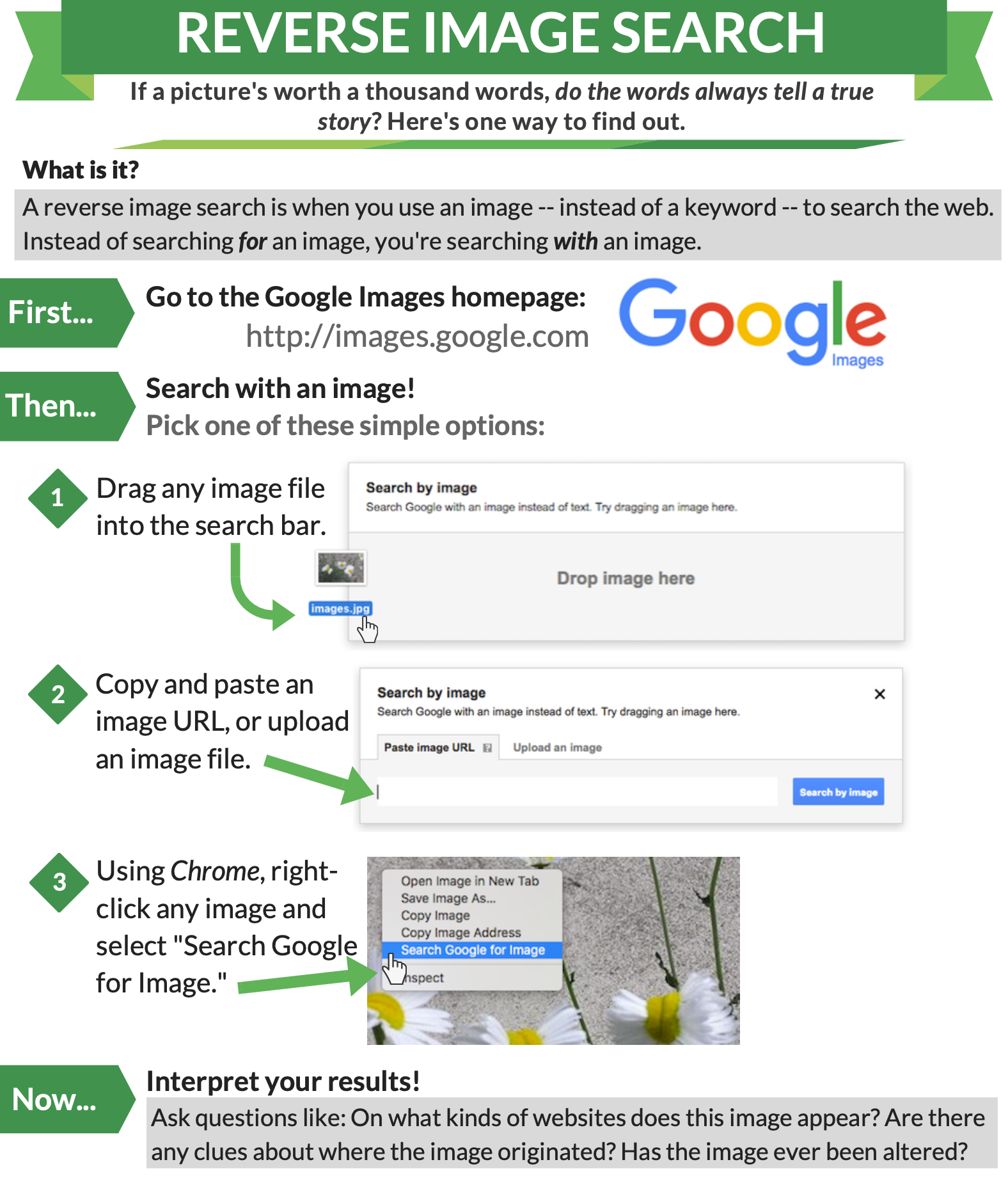
DO A REVERSE IMAGE SEARCH
BE SKEPTICAL (AND A BIT HUMBLE)
Scams existed before the internet, before social media, but their reach and appeal has never been greater than now.
Two key areas that require your critical eye – phishing attacks and online ads.
As a bonus, consider taking steps to reduce unwanted calls – makes it less easy for the scammers to snare you.
Linked below are basic steps. Read more from the organizations mentioned!